How to Create an Invoice in Google Docs
Learn how to create an invoice in Google Docs with our step-by-step guide. Master tables, formatting, and PDF exports to streamline your billing process today.
Published · Updated · By ToolNimbly
For many freelancers and small business owners, the simplest tools are often the most effective. Google Docs provides a flexible platform for managing your billing. Because it is free to use, it is a common starting point for those who want control over their document design without the overhead of specialized accounting software.
Learning how to create an invoice in Google Docs allows you to maintain a consistent record of your transactions. According to the IRS, businesses should maintain a recordkeeping system that clearly shows income and expenses, and invoices serve as supporting documents for your business books.
Why Use Google Docs for Your Invoicing?
The primary advantage of using Google Docs is accessibility. Since your documents are stored in the cloud, you can access and edit your invoices from any device with an internet connection. This helps you maintain a centralized location for your billing files.
Beyond convenience, Google Docs offers customization. Unlike rigid platforms that force you into a specific layout, Google Docs functions as a blank canvas. You can adjust fonts, colors, and spacing to match your brand identity. For those who prefer a manual approach to their bookkeeping, this flexibility allows you to evolve your invoice format over time as your business needs change.
Step-by-Step: Setting Up Your Invoice Document
Before you start typing, you need to prepare your document to ensure it displays correctly.
Page Setup
Start by opening a blank document. Go to File and select Page setup. For a standard business invoice, a 1-inch margin on all sides is common and ensures your content is well-framed. Ensure your paper size is set to Letter (8.5 x 11 inches) and the orientation is set to Portrait.
Branding and Header
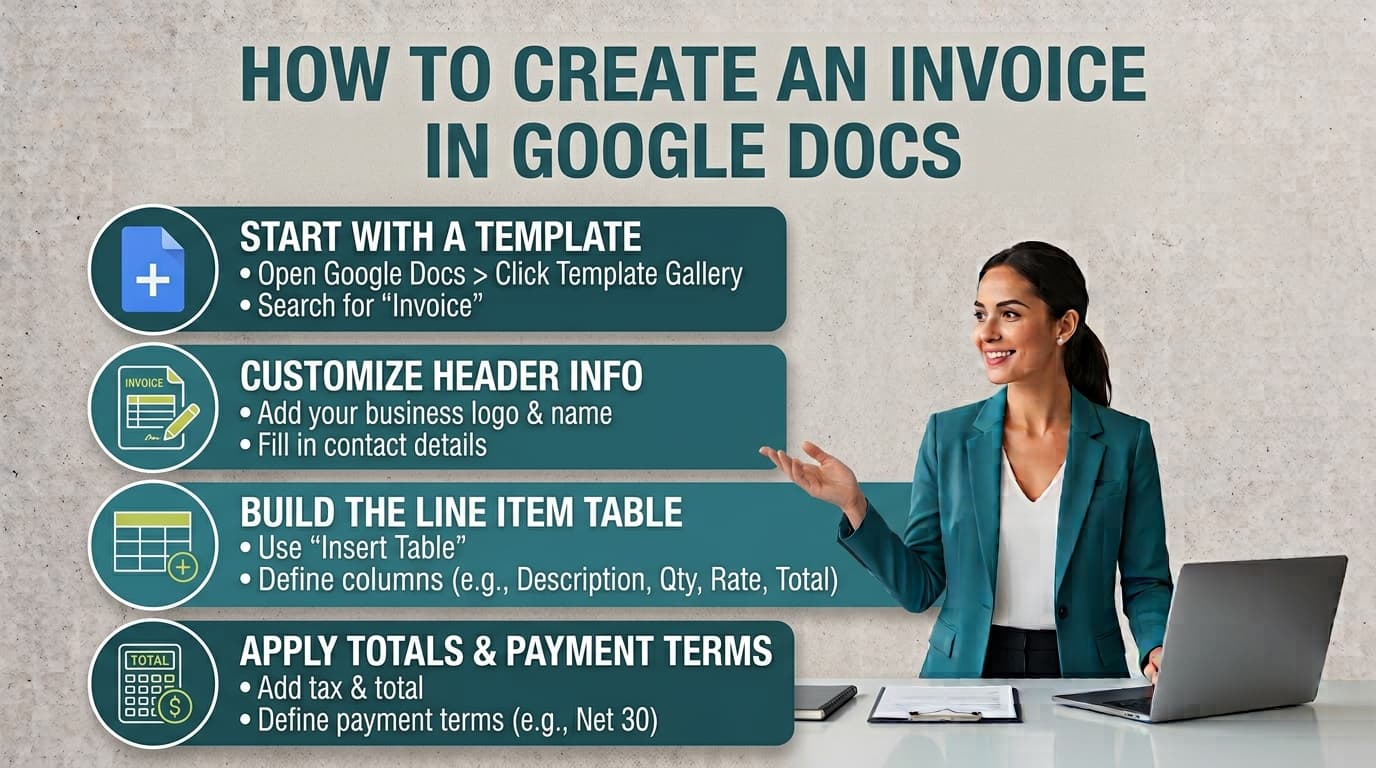
Use the top of the page for your business identity. Align your business name, address, and contact information to the right or left. Use a professional font like Arial, Roboto, or Georgia. If you have a company logo, go to Insert, select Image, and choose Upload from computer to place it at the top of the document.
The Table Layout
A clean invoice format in Google Docs relies on tables to keep information organized. Go to Insert, select Table, and choose a 4x1 grid to start. You can add more rows later as your itemized list grows. This table will serve as the skeleton for your billing details, keeping your text aligned and readable.
Structuring Your Invoice Fields and Totals
A professional invoice requires specific information to ensure your client understands exactly what they are being billed for.
Essential Sections
Divide your document into clear sections. At the top, include a "Bill To" section with your client's name and address. Below that, place an invoice number, the issue date, and the payment due date.
Itemized Lists
Within your table, create columns for:
Description: A brief summary of the goods or services provided.
Quantity: The number of units or hours.
Rate: The price per unit or hour.
Total: The product of quantity and rate.
If you find that manually calculating totals, tracking line items, or formatting complex tax and discount structures becomes too time-consuming, you can create an invoice online using specialized tools. These tools allow you to create, format, preview, print, or download an invoice as a PDF. The tool supports business and client details, an invoice number, issue and due dates, currency, line items, payment instructions, terms, notes, discounts, one document-level tax, shipping or fees, paid amount, and balance due. It calculates line totals, subtotal, discounts, tax, fees, total, paid amount, and balance due using exact decimal arithmetic.
Finalizing and Exporting Your Invoice
Once your information is entered, review the document for clarity and consistency.
Polishing the Design
Apply subtle branding colors to the table headers to make the document feel cohesive. Ensure the font size for your body text is legible, typically between 10 and 12 points. Avoid over-decorating; the goal is to make the invoice as easy for the client to read as possible.
Converting to PDF
The final step is important for professional delivery. Instead of sending a raw Google Doc, go to File, select Download, and choose PDF Document (.pdf). This converts your work into a static file, preserving the layout during transit.
Recordkeeping
Once exported, save your PDF with a clear, searchable naming convention, such as Invoice_1001_ClientName_Date.pdf. Storing these in a dedicated folder within your cloud drive ensures you have a reliable paper trail for your business records. The IRS notes that businesses may choose a recordkeeping system suited to the business that clearly shows income and expenses.
Frequently Asked Questions
Can I use a pre-made Google Docs invoice template instead?
Yes, Google Docs offers a template gallery that includes basic invoice designs. While these can save time, they may not always align with your specific branding needs. Creating your own from scratch gives you full control over the layout, ensuring the document looks exactly how you want it to appear to your clients.
Is an invoice created in Google Docs a business record?
An invoice is a tool used to document a transaction. Requirements for business records vary by jurisdiction, industry, transaction, and tax status. It is always wise to review guidance from your local tax authority regarding the specific information required for your business books.
How do I handle recurring invoices in Google Docs?
To handle recurring billing, create a master template document. Each time you need to bill a client, open your master file, update the invoice number and date, and save a copy as a new PDF. This ensures you maintain a consistent look across all your client communications while minimizing the time spent on formatting.
What should I include in the payment terms?
Your payment terms should be clearly stated at the bottom of the document. Include information such as the preferred payment method or instructions for remittance. Being explicit about when payment is due and how it should be remitted helps provide clarity for your clients.
How do I manage my invoice history?
When using Google Docs, you are responsible for your own file management. Create a folder structure in your cloud storage organized by year or by client. This manual organization is necessary because Google Docs does not provide an automated database or cross-device history of your invoices.
Should I add extra business identifiers?
Add only information relevant to the client's billing process and the requirements that apply to your business. Use a secure vendor-onboarding channel for sensitive details rather than placing them in a routine invoice.
How can I ensure my calculations are correct?
When building an invoice manually in Google Docs, you must perform the arithmetic yourself. Double-check your line totals, subtotals, and any applicable taxes or discounts before finalizing the document. If you prefer to avoid manual calculations, using a dedicated tool can help ensure your totals are calculated using exact decimal arithmetic.
What if I need to add a logo?
You can add a logo to your Google Docs invoice by going to Insert, selecting Image, and choosing Upload from computer. Ensure your logo file is high-resolution but small enough in file size that it does not make the invoice document difficult to load or print.
How do I handle partial payments?
If a client makes a partial payment, you may need to issue a new invoice or a statement reflecting the remaining balance. Because Google Docs does not track payments automatically, you must manually update your records to reflect the current balance due. Keeping a separate spreadsheet or ledger alongside your invoice files can help you track which invoices have been paid and which remain outstanding.
Is there a limit to how many invoices I can create?
There is no limit to the number of invoices you can create in Google Docs, provided you have sufficient storage space in your cloud account. This makes it a scalable solution for businesses that are just starting out and need a cost-effective way to manage their billing documentation.
How does the ToolNimbly invoice generator handle data?
The ToolNimbly invoice generator requires no signup and sends no invoice data to a server. Any optional drafts are stored only in the current browser. Users can add a logo, which is processed locally and is not uploaded to any server. This provides a private way to create, format, preview, print, or download an invoice as a PDF.
Does the ToolNimbly generator provide accounting advice?
No. The tool does not maintain an automatic numbering sequence, a server-side client database, cross-device history, currency conversion, mixed tax rates, reverse-charge handling, or a guarantee of legal or tax compliance. It is a utility for formatting and calculating invoice totals using exact decimal arithmetic. Users should consult with a professional regarding their specific business and tax requirements.
Put this into practice
Use the Invoice tool for the calculation, then read What an invoice needs to contain for the supporting explanation.