How to Create an Invoice in Word
Learn how to create an invoice in Word with our step-by-step guide. Get tips on professional formatting, using templates, and exporting to PDF for your business.
Published · Updated · By ToolNimbly
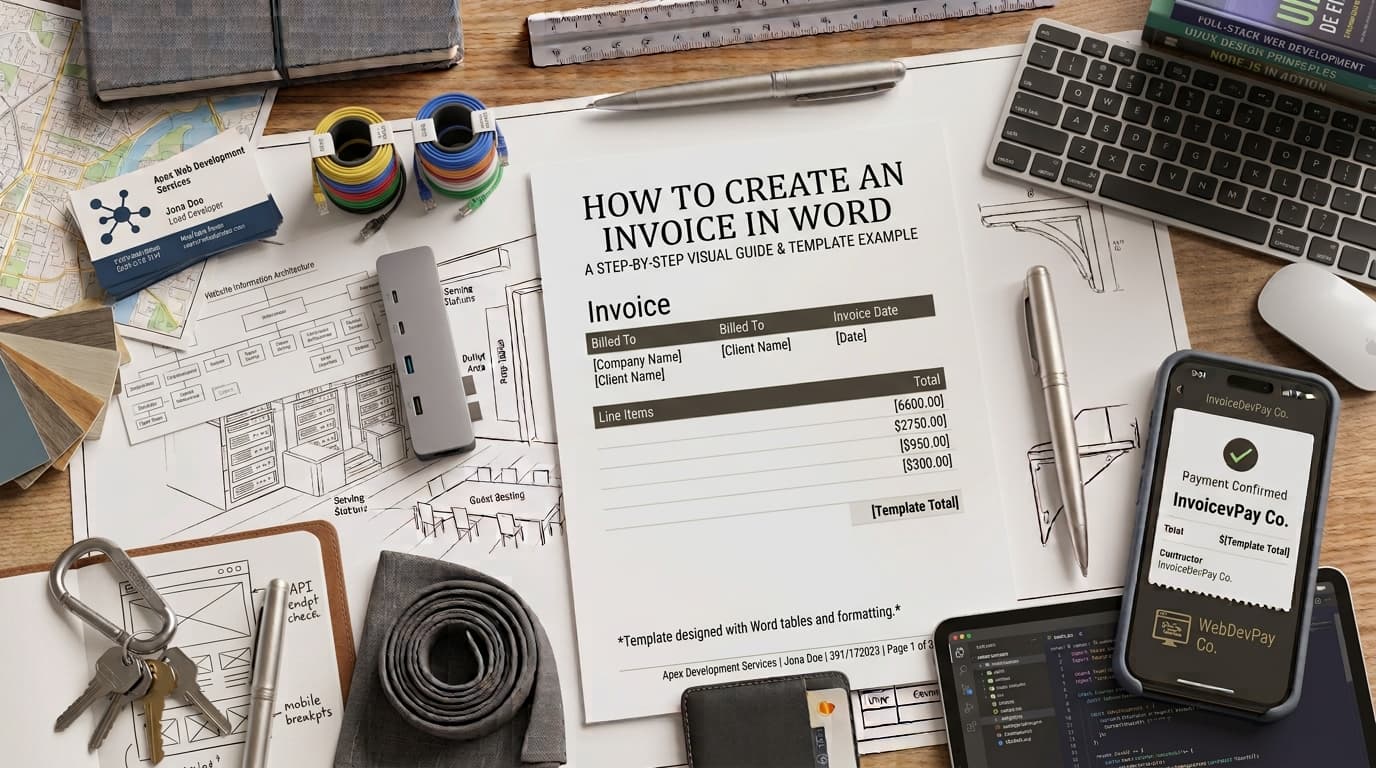
For many independent contractors and small business owners, the simplest path to billing is using the software already installed on their computer. Learning how to create an invoice in Word allows you to generate documents without needing specialized accounting software. While manual methods require more oversight, they offer control over the design and layout of your business correspondence.
Why Use Microsoft Word for Invoicing?
Microsoft Word is an accessible, flexible tool that excels at creating narrative-style documents. For a freelancer, a consultant, or a small shop owner, Word provides a low barrier to entry. You can customize fonts, colors, and logos to match your brand identity, ensuring that your billing materials look professional.
From a record-keeping perspective, maintaining documentation is helpful for tracking your business income. Invoices serve as primary supporting documentation for your business records. By maintaining a consistent, structured approach to your billing, you ensure that your records remain clear and organized.
However, Word is a manual tool. It does not automatically track tax obligations, send payment reminders, or manage client databases. As your business needs grow, you may find that an online invoice generator offers a more efficient alternative to ensure accuracy in calculations and save time on data entry. Using such a tool allows you to create, format, preview, print, or download an invoice as a PDF with significantly less effort.
Step-by-Step: Building Your Invoice in Word
To ensure your invoice remains professional and readable, avoid using floating text boxes. Instead, use tables to lock your content into a grid. This prevents the layout from shifting when you add or remove items.
Set Up the Header: Insert a table with two columns. Place your business logo and contact information in the left column and the word "INVOICE" in large, bold text in the right column. Include your business name, address, phone number, and email.
Add Client Details: Below the header, create a secondary table. Use one side for "Bill To" information, including the client name and address, and the other for tracking details like the unique invoice number and the issue date.
Create the Itemized List: Insert a larger table to house your service descriptions. Use columns for Description, Quantity, Rate, and Amount. This grid structure keeps your financial data aligned.
Calculate Totals: You can use Word built-in table formulas for basic math. Select the cell where you want the subtotal, go to the Layout tab, and select Formula. Use the formula =SUM(ABOVE) to add your line items. While this is helpful for simple bills, be mindful that manual entry carries a risk of calculation errors.
Formatting and Professional Best Practices
A professional invoice does more than just request payment; it clarifies your expectations and helps maintain your business records.
Sequential Numbering: Use a unique, sequential invoice number for every document. Skipping numbers or repeating them creates confusion and makes it difficult to track outstanding payments.
Clear Descriptions: Avoid vague terms like "Consulting services." Be specific. List the exact hours worked, the specific repairs performed, or the materials provided. This transparency reduces the likelihood of payment disputes.
Define Your Terms: Clearly state your payment expectations. If you expect payment within 30 days, note this as "Net 30." If you have specific payment methods, such as a bank transfer, list these clearly at the bottom of the document.
Secure the File: Once your invoice is complete, export your document as a PDF. This ensures the recipient cannot alter your data, and it keeps your formatting intact regardless of what device the client uses to open it.
Streamlining Your Workflow with Templates
Creating an invoice from scratch every time is inefficient. Once you have a layout you are happy with, save it as a reusable template.
In Word, go to File and select Save As. Choose the .dotx format from the file type dropdown menu. When you select this file in the future, Word will open a new, clean document based on your template, leaving the original file untouched. This is an excellent way to manage a sample invoice template without having to reformat your branding every time.
As your business needs evolve, you may find that the time spent manually formatting documents and calculating totals becomes a burden. If you find yourself frequently needing to adjust tax rates, handle discounts, or manage complex fee structures, it is time to transition to a more automated system.
Organizing Your Billing Records
Effective record-keeping is a cornerstone of running a business. When you use Word to generate invoices, you must establish a manual filing system to keep your documents organized.
Folder Structure: Create a dedicated folder on your computer for invoices. Within that folder, create subfolders for each year, and further subfolders for each client. This makes it easy to retrieve documents if a client has a question or if you need to review your income history.
Naming Conventions: Use a consistent file naming convention for your PDFs. For example, "2024-05-15_Invoice_001_ClientName.pdf" allows you to sort files chronologically and by client name quickly.
Backup Strategy: Because Word files and PDFs are stored locally on your computer, they are vulnerable to hardware failure. Use a cloud-based backup service or an external hard drive to ensure your financial records are protected against data loss.
Review Cycles: Set aside time each month to review your outstanding invoices. Check which payments have been received and which are still pending. This manual review process is essential when you are not using automated accounting software that tracks payment status in real time.
Frequently Asked Questions
Should I use Word or Excel for my invoices?The choice depends on your needs. Word is superior for design-heavy, narrative-style invoices that look like professional business letters. Excel is better if you have complex calculations, need to maintain a database of past invoices, or require automated tracking of payments over time.
What if a client asks for vendor-registration information?Ask the client which information its accounts-payable process requires and how it should be submitted. Send sensitive business or tax details through an approved secure onboarding channel, not in a routine invoice document or email.
How do I handle sales tax on a Word invoice?Sales tax rules are state-specific. If you are required to collect sales tax, you must verify your tax obligation in the states where you operate or sell. On your Word invoice, create a row in your totals table for tax. Calculate the tax amount based on the applicable rate for your jurisdiction and add it to the subtotal to reach the final amount due. Always consult with a tax professional to ensure you are applying the correct rates and following local regulations.
What should I do if a client disputes an invoice?Disputes often arise from a lack of clarity. If a client questions an item, refer back to your original agreement or contract. Having a detailed, itemized list on your invoice makes it easier to explain the charges. Maintain a professional tone in your communication and provide any supporting documentation that clarifies the work performed. If the dispute involves complex financial or legal issues, consult with a professional advisor.
Is an invoice a legal contract?An invoice is a request for payment and a record of a transaction. It is not a legal contract in itself. The legal obligations between you and your client are typically established by a separate agreement or contract signed before the work begins. Always ensure your business agreements are clearly documented to protect your interests.
How can I improve my cash flow when using manual invoices?To improve cash flow, be proactive with your billing. Send the invoice immediately upon completion of the work. Ensure your payment terms are clearly stated and easy to understand. If you offer multiple payment methods, make sure the instructions are prominent. If a payment is late, send a polite follow-up email to the client to remind them of the outstanding balance. Keeping a consistent schedule for sending invoices and following up on payments is the most effective way to manage your cash flow when using manual tools.
Maintaining Professionalism in Your Invoices
Beyond the technical setup, the way you present your invoice influences your professional reputation. Ensure your document is free of typos and that your branding is consistent across all pages. If you include a logo, ensure it is high resolution so it does not appear pixelated when printed or viewed on a screen.
When listing items, consider the client's perspective. Use clear, descriptive language that explains exactly what they are paying for. If you provided a project-based service, break it down into milestones or phases. This level of detail helps the client understand the value they received and reduces the likelihood of questions regarding the final total.
Finally, remember that your invoice is a piece of business communication. While it is a financial document, it should reflect the same level of care and professionalism as your other business interactions. By taking the time to format your invoices correctly in Word, you demonstrate that you are organized, detail-oriented, and committed to providing a high-quality experience for your clients. As your business grows, you can always transition to more automated systems, but the habits you build now, such as clear itemization, consistent numbering, and professional presentation, will serve you well throughout your career.
Put this into practice
Use the Invoice tool for the calculation, then read What an invoice needs to contain for the supporting explanation.