How to Make an Invoice in Excel: Step-by-Step
Learn how to make an invoice in Excel with our step-by-step guide. Create professional, audit-ready billing documents with formulas and formatting tips.
Published · Updated · By ToolNimbly
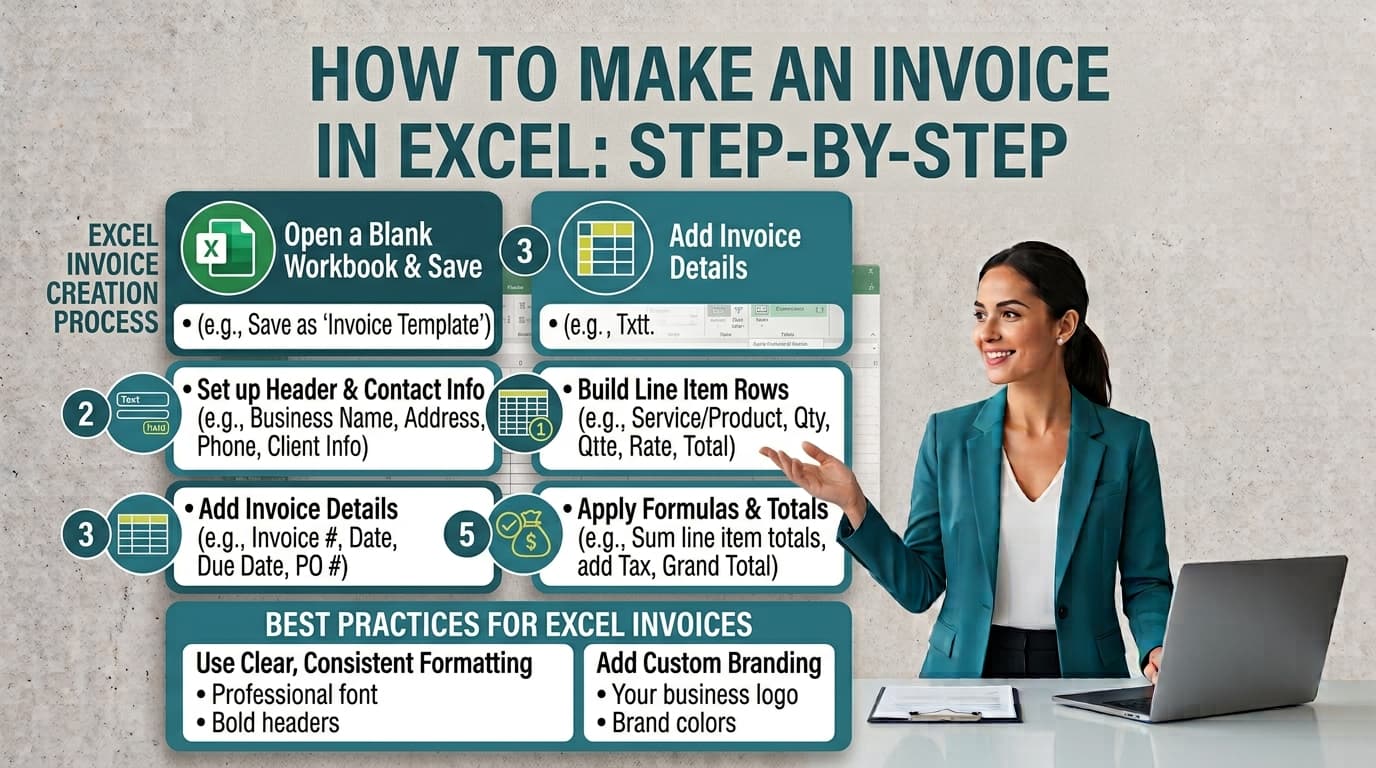
For many freelancers and small business owners, the simplest path to requesting payment is often the software already installed on their computer. If you are wondering how do you make an invoice in excel, you are in good company. Excel remains a popular choice because it offers control over your document layout and branding without requiring a monthly subscription.
However, moving from a blank spreadsheet to a professional billing document requires more than just typing in numbers. To ensure you maintain organized records for your business, you need a structured approach.
Why Use Excel for Your Invoicing Needs?
Excel is highly accessible for those who already use Microsoft Office. Beyond the lack of recurring costs, it provides a high degree of flexibility. You can customize fonts, colors, and logos to match your brand identity.
Using a consistent spreadsheet format helps you maintain the records necessary for documenting business income. By building a reliable template, you ensure that every transaction is documented with the level of detail required for your own professional accounting.
Step-by-Step: How to Create an Invoice in Excel
To build a functional template, focus on three distinct zones: the header, the client information, and the itemized table.
1. Setting Up the Header and Client Details
Start by placing your business name, address, and contact information at the top. Use a clear, professional font. Below this, create a "Bill To" section. This should include the client's name, their business name, and their contact address. Ensure there is enough white space so the document looks clean and readable.
2. Structuring the Line-Item Table
A professional invoice template requires a clear table structure. Create columns for the following:
Description of goods or services
Quantity
Unit Price
Total
Ensure that the "Total" column is formatted as currency. This prevents formatting errors when you begin entering data.
3. Implementing Essential Formulas
Automation in Excel is limited to what you build, so use formulas to eliminate manual math errors.
Line Total: In the first row of your Total column, enter =Quantity*UnitPrice. Drag this formula down to cover your anticipated number of rows.
Subtotal: Use =SUM(Range) to add up all your line totals.
Tax: If you charge sales tax, calculate it by multiplying your subtotal by your local tax rate (e.g., =Subtotal*0.07).
Grand Total: Add the subtotal and the tax together using =Subtotal+Tax.
4. Finalizing and Exporting
Once your formulas are set, test them with sample data to ensure they calculate correctly. When you are ready to send the document to a client, always save or export the file as a PDF. This prevents the recipient from accidentally changing your formulas or layout and ensures the document remains static.
Essential Fields for Professional Invoices
How do I make an invoice in Excel that stands up to scrutiny? The key is including specific, consistent information. Every invoice should be treated as a permanent record.
Unique Invoice Numbers: Using a unique identifier is a practical choice for tracking payments and reconciling your accounts.
Date and Terms: Clearly state the date of the invoice and the payment terms. Terms like "Net 30" tell the client when payment is expected.
Itemized Descriptions: Avoid vague terms like "Consulting Services." Be specific enough that you could easily explain what was provided and why.
Sales Tax: Tax treatment and display requirements vary by jurisdiction. You should check with the relevant authority or a professional adviser to determine your specific obligations.
Best Practices for Organizing Your Excel Invoices
Beyond the layout of the document itself, how you manage your files is critical. Because Excel does not provide a centralized database, you must establish a manual filing system.
Consistent File Naming
Adopt a naming convention that allows you to find documents quickly. For example, use a format like "YYYY-MM-DD_InvoiceNumber_ClientName.pdf." This ensures that your files are sorted chronologically in your folder, making it easier to locate specific records during tax season or when a client has a question.
Maintaining a Master Log
Since Excel does not automatically track the status of your invoices, consider creating a separate "Master Log" spreadsheet. In this document, list every invoice you send, including the invoice number, the date sent, the client name, the total amount, and the payment status (e.g., "Sent," "Paid," or "Overdue"). This log acts as a dashboard for your business, allowing you to see at a glance which payments are outstanding without opening every individual invoice file.
Backup and Security
Because your invoices are stored locally, you are responsible for their safety. Regularly back up your invoice folder to an external drive or a secure cloud storage service. If your computer is lost or damaged, these records are essential for reconstructing your income history.
When to Move Beyond Excel: Scaling Your Billing
While Excel is excellent for low-volume billing, it has inherent limitations. As your business grows, manually updating spreadsheets becomes a liability. Common issues include broken formulas, inconsistent numbering, and the lack of a secure, centralized history.
Excel also lacks the ability to automate the payment process. If you find yourself spending more time chasing payments than doing the work you are billing for, it is time to transition. A faster online invoice generator can help you create, format, preview, print, or download an invoice as a PDF. This tool supports business and client details, invoice numbers, issue and due dates, currency, line items, payment instructions, terms, notes, discounts, one document-level tax, shipping or fees, paid amount, and balance due. It calculates totals using exact decimal arithmetic and allows you to add a logo, which is processed locally. Because it requires no signup and stores no data on a server, it is a straightforward way to maintain professional billing as your client base expands.
Frequently Asked Questions
Is an Excel invoice a contract?
An invoice is a request for payment and a business record. It is not a contract, and its legal effect depends on the surrounding agreement and your specific jurisdiction.
Can I use Excel to track if a client has paid?
You can create a column in your spreadsheet to track "Paid" versus "Pending" status, but this requires manual updates. Unlike dedicated software, Excel cannot automatically flag overdue invoices or send payment reminders, which increases the risk of human error as your volume of invoices grows.
How long should I keep my invoices?
Record retention periods vary based on your specific business structure and local tax laws. You should consult with a qualified tax professional to determine how long you must retain your financial records.
What should I do if I make a mistake on an invoice?
If you discover an error after sending an invoice, the best practice is to issue a corrected version immediately. Clearly mark the new document as a "Corrected Invoice" and reference the original invoice number so the client can easily identify which document is being replaced. Do not simply delete the old file; keep both the original and the corrected version in your records to maintain a clear audit trail.
How do I handle partial payments in Excel?
If a client pays only a portion of the total, you should update your Master Log to reflect the amount received and the remaining balance. You may also choose to issue a statement of account to the client, which summarizes the original invoice total, the amount paid, and the outstanding balance. This keeps both parties aligned on the remaining obligation.
Are there specific formatting requirements for invoices?
There is no universal format for an invoice. However, a professional document should be clear, easy to read, and contain all the information necessary for both you and your client to understand the transaction. Using a consistent layout for all your invoices helps maintain a professional image and makes your recordkeeping more efficient.
Should I include my bank details on an invoice?
You may include payment instructions on your invoice to facilitate payment. However, avoid including sensitive identifiers such as full bank credentials or personal identification numbers. Provide only the information necessary for the client to complete the payment, such as a business account name and routing information, and ensure that your delivery method for the invoice is secure.
How do I manage multiple tax rates in Excel?
Excel can handle multiple tax rates if you build your formulas to account for them, but this increases the complexity of your spreadsheet. If your business requires applying different tax rates to different line items, ensure your formulas are set up to calculate each tax component accurately and display them clearly for the client. If your tax needs become complex, consider whether a dedicated tool might be more efficient than a manual spreadsheet.
Put this into practice
Use the Invoice tool for the calculation, then read What an invoice needs to contain for the supporting explanation.