How to Make an Invoice in Google Sheets (+ Template)
Learn how to make a professional invoice template in Google Sheets. Follow our step-by-step guide to set up formulas for tax and totals, or use our free generator.
Published · Updated · By ToolNimbly
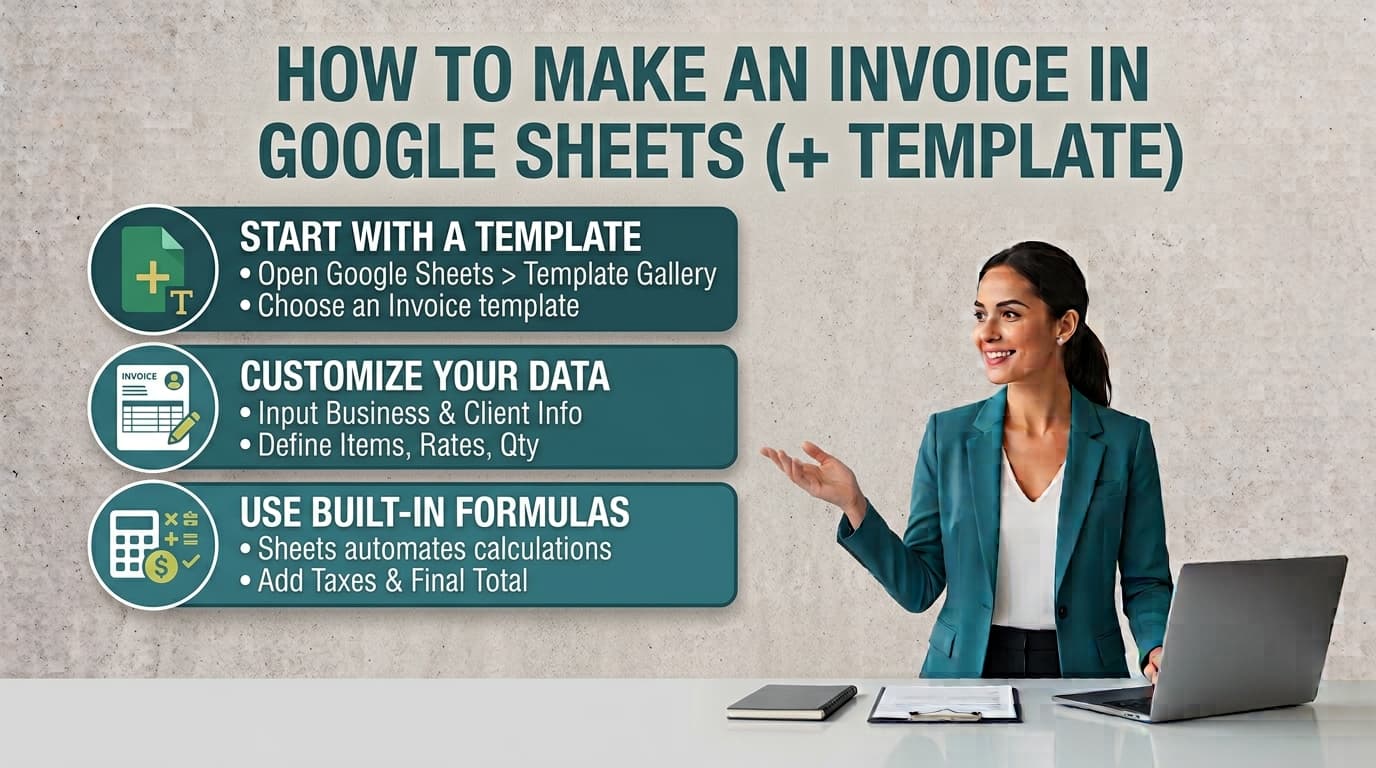
Managing your own billing is a core part of running a small business. While specialized accounting software exists, many freelancers and solopreneurs prefer the flexibility of a custom spreadsheet. Learning how to build an effective invoice template google sheets gives you control over your branding and data organization without recurring subscription fees.
Why Use Google Sheets for Your Invoicing?
Many business owners start by drafting invoices in a word processor. While this works for one-off documents, it is often inefficient for recurring work. Word processors are designed for text, not data. Every time you create a new invoice, you must manually calculate totals, which increases the risk of human error.
Google Sheets is effective because it automates your math. By setting up a proper invoice template google sheets, you create a reusable system. You only need to enter your client’s information and the line items; the spreadsheet handles the subtotals, tax, and grand totals automatically. This consistency helps ensure your financial records remain organized, which is useful for maintaining a professional reputation.
Common Elements of a Professional Invoice
To ensure your documentation is clear and useful for your records, consider including specific fields that provide a complete picture of the transaction.
Business Contact Information: Your name, address, and contact details.
Client Information: The name and address of the entity you are billing.
Unique Invoice Number: Using a consistent, sequential system makes tracking and record keeping easier.
Dates: Include both the issue date and a specific due date. Providing a specific deadline rather than vague terms provides clarity for both parties.
Itemized Description: A clear breakdown of the goods or services provided.
Financial Details: Quantity, unit price, tax amount, and the final total.
An invoice serves as a request for payment and a record of a transaction. Ensure you have a clear understanding of the scope of work before you begin. Regarding record retention, it is a practical business practice to keep your financial records organized and accessible for your own tracking and tax filing needs. Consult with a professional regarding specific retention requirements for your jurisdiction.
Step-by-Step: Building Your Google Sheets Invoice Template
To build your own template, open a new Google Sheet and follow these steps to create a clean, functional layout.
1. Setting Up the Layout
Create a header section at the top for your business logo and contact information. Below that, leave space for the client's details and the invoice metadata, such as the invoice number, issue date, and due date. Create a table with columns for Description, Quantity, Price, and Total.
2. Implementing Formulas
The power of your invoice template google sheets lies in its formulas. You want to avoid manual entry for all calculations.
Line Item Totals: In the first row of your "Total" column, assuming it is column D and your row starts at 10, enter the formula =B10*C10. This multiplies the quantity by the price. Drag this formula down for as many rows as you need.
Subtotal: At the bottom of your table, use the =SUM(D10:D20) formula to add up all your line item totals.
Tax and Grand Total: To calculate tax, use a formula such as =D21*0.0825, replacing 0.0825 with your specific tax rate. Finally, add the subtotal and tax together using =D21+D22 to get your grand total.
3. Formatting for Professionalism
A cluttered invoice can look unprofessional. Use cell borders to separate your table from the rest of the document. Use bold fonts for headers and total amounts. You can also use the Format menu to set cells to Currency so that your numbers automatically include dollar signs and two decimal places.
Streamline Your Billing Process
Building a custom spreadsheet is a great way to start, but as your business grows, manual spreadsheet management can become a bottleneck. If you find yourself spending more time troubleshooting formulas or formatting cells than actually running your business, it may be time to switch to a dedicated tool.
For those who want the professional look of a generated document without the overhead of maintaining a complex spreadsheet, you can use ToolNimbly’s free invoice generator to create, format, preview, print, or download an invoice as a PDF.
This tool is designed for speed. It allows you to add business and client details, set payment terms, and calculate totals using exact decimal arithmetic. Because it processes data locally in your browser, it is a private way to generate professional documents without needing to manage a database or worry about complex spreadsheet formulas. The tool supports adding a logo, which is processed locally, and offers at least two visual templates to choose from.
Frequently Asked Questions
How long should I keep my invoices?It is a standard business practice to keep your financial records for several years to ensure you have a clear history of your business income and expenses for your own reference. Check with your local tax authority for specific guidance on record retention periods in your area.
Can I use Google Sheets for complex tax rates?If you work across multiple jurisdictions with different tax requirements, avoid hardcoding values into your formulas. Instead, create a separate tab in your workbook to serve as a tax rate table. You can then use a VLOOKUP function to pull the correct rate based on the client’s location, which keeps your main invoice template google sheets clean and accurate.
What is the benefit of using a dedicated invoice generator?A dedicated generator removes the need for manual formula maintenance. It allows you to quickly input your data, calculate totals, and produce a clean PDF without the risk of breaking a spreadsheet cell or accidentally deleting a formula. This is helpful when you need to issue invoices frequently and want to maintain a consistent, professional appearance across all your billing documents.
Best Practices for Invoice Management
Beyond the technical setup of your template, your workflow determines how effectively you get paid. Consider these organizational tips to keep your billing process running smoothly:
Standardize Your File Naming: Use a consistent naming convention for your saved files, such as YYYY-MM-DD_ClientName_InvoiceNumber.pdf. This makes searching for past documents much faster.
Maintain a Master Client List: Keep a separate sheet in your workbook that contains client contact information. You can use this to populate your invoices quickly, reducing the chance of typos in addresses or names.
Review Before Sending: Always double-check the math and the details on your invoice before sending it. Even with automated formulas, a simple error in quantity or price can be corrected before the document reaches the client.
Clear Payment Instructions: Clearly state how you accept payment. Whether it is via bank transfer, check, or an online payment platform, provide the necessary details so the client knows how to settle the balance.
Follow Up Proactively: If a due date passes without payment, send a polite follow-up email. Having a record of when the invoice was sent and when it is due makes these conversations much easier to manage.
Use Separate Tabs for Tracking: You can create a Dashboard or Tracking tab in your Google Sheets workbook to log the status of every invoice (e.g., Sent, Paid, Overdue). This gives you a high-level view of your cash flow without needing to open every individual file.
By combining the flexibility of Google Sheets with a disciplined approach to organization, you can create a billing system that scales with your business. Whether you choose to build your own template or use a dedicated tool, the goal remains the same: to provide a clear, professional request for payment. Always remember that this information is for educational purposes and does not constitute legal or tax advice; consult with a professional for your specific business situation.
Put this into practice
Use the Invoice tool for the calculation, then read What an invoice needs to contain for the supporting explanation.